Getting Started
The following setup will show you how to enable semantic search on arbitrary video in the Eluvio Content Fabric.
Tagging content
First we must generate searchable tags on our content. The easiest way to do this is to run AI models via the EVIE AI Runtime application: https://dev.contentfabric.io/apps/Video%20Intelligence%20Editor#tagging/
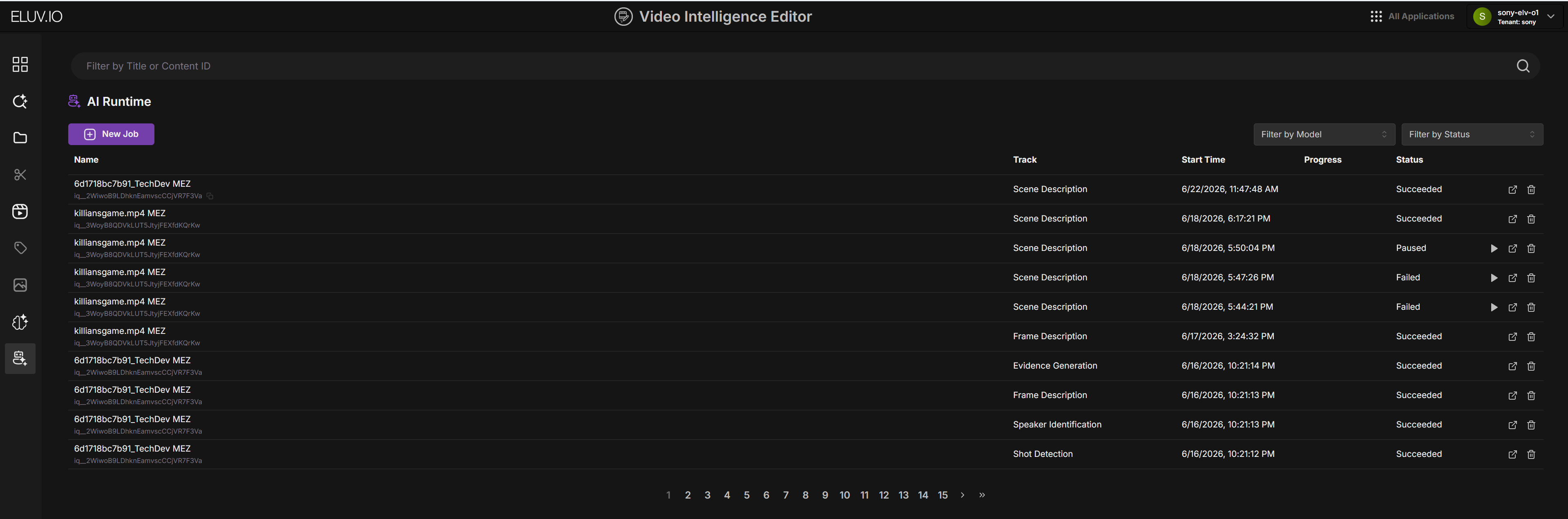
Shot Detection
Default behavior assumes shot detection has been run
By default clips will be composed based on shot boundaries, which requires the shot_detection model to have been run.
If there is no suitable segmentation track for your content, you can aggregate documents into fixed time buckets instead. This will require configuring your desired window size, see the configuration docs: fixed time buckets
Tagger API
Alternatively, you may elect to use the tagger API directly. see the API docs: Start tagging
Tagstore API
Tags don't need to be generated via AI, you may also add tags directly via the tagstore API. see the API docs: Post tags
Search index Setup
The next step is to configure your search index. A search index defines a grouping of searchable content.
1. Create a index content object in the fabric
A search index must be associated with a content object in the Content Fabric.
The easiest way to create a content object is through the Fabric Browser application.
- Navigate to https://core.v3.contentfabric.io/apps/Fabric%20Browser#/ and sign in with your private key
- Click on the library you wish to add the content object to
- Click on "More Options" -> "Create"
- Once the creation finalizes: copy the "Auth Token" for the next step.
2. Create a collection in the vectorstore
Create a collection containing a list of qids for content objects you wish to index, as well the relevant tenant id. see the API docs: Create a collection
Note: in order for the clip search API to return playable clips: the contents must be VOD/Title-Mezzanine type.
POST /collections HTTP/1.1
Host: https://ai.contentfabric.io/vectorstore
Authorization: Bearer <token>
Content-Type: application/json

{
  "name": "my collection",
  "qids": [
    "<qid1>",
    "<qid2>"
  ],
  "tenant": "<tenant id>"
}
Getting the tenant id (via Fabric Browser)
- Click on user icon in top right of fabric browser and select "Profile"
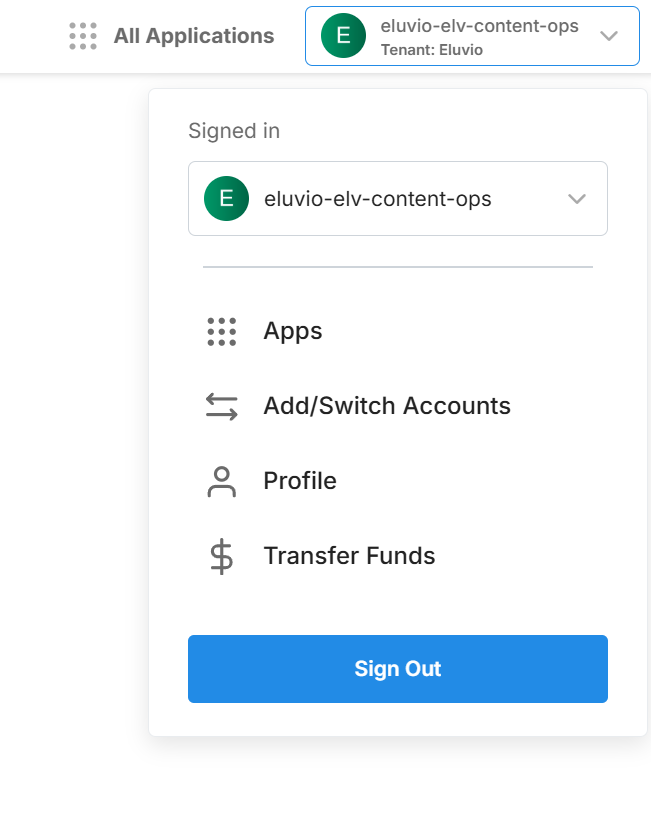
- Copy the tenant id located under the user icon
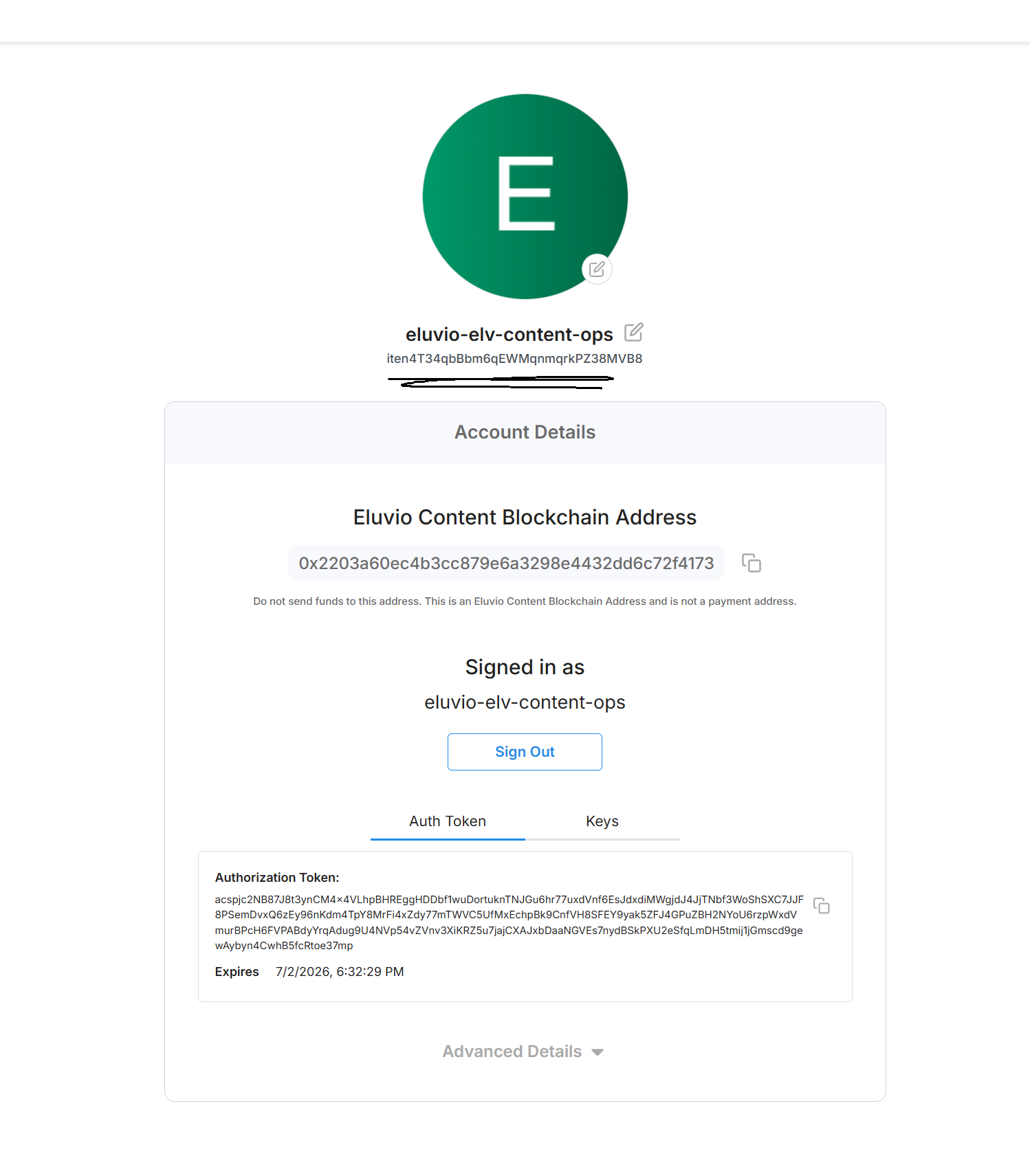
3. Create a clip-search index in the vectorstore
Create a new index with type set to "clip-search", collection_id set to the collection you created in the last step, and <qid> set to the content object qid you created in step 1. See the API docs: Create an index
POST /indexes/<qid> HTTP/1.1
Host: https://ai.contentfabric.io/vectorstore
Authorization: Bearer <token>
Content-Type: application/json

{
	"collection_id": "<collection_id>",
	"name": "test",
	"type": "clip-search",
}
4. (optional) Check indexing status
After creating your index and pointing it to your content collection, all tags associated with your content will be indexed automatically. This is an asynchronous process and you may check the progress by calling the status API on the index content object.
GET /indexes/<qid> HTTP/1.1
Host: https://ai.contentfabric.io/elv-indexer/indexes/<qid>
Authorization: Bearer <token>
Content-Type: application/json
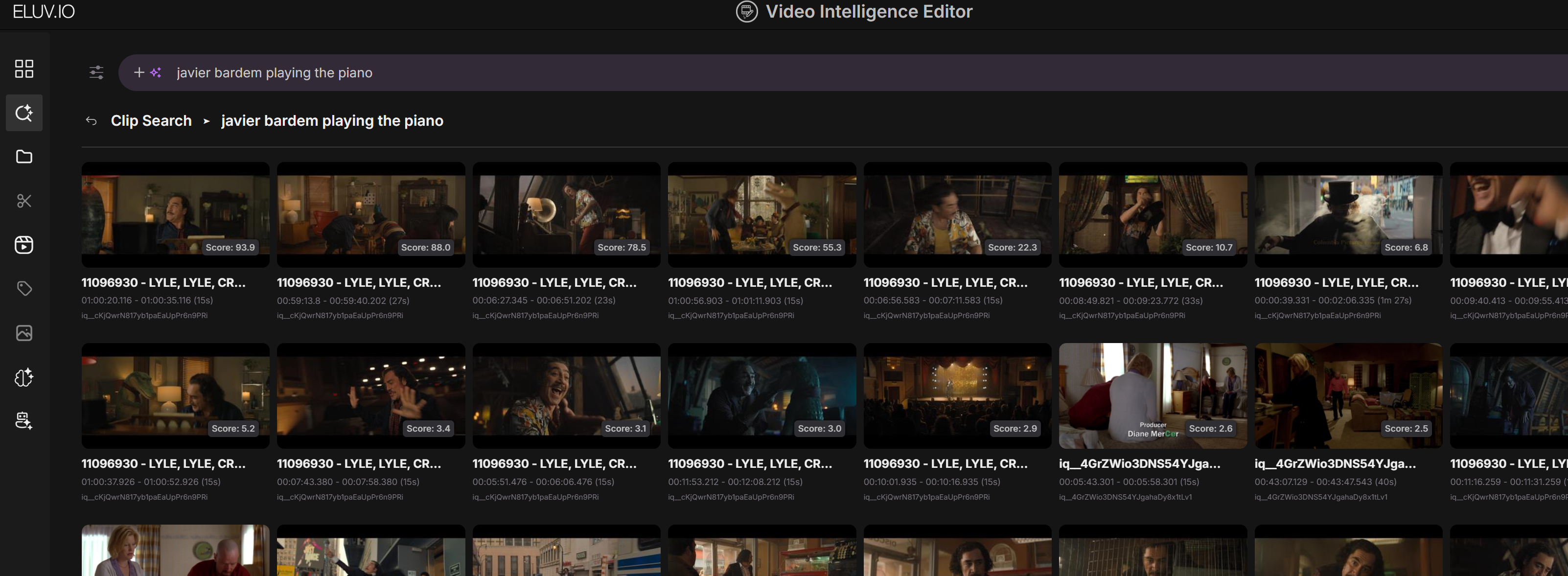
Using the search
See the API docs: Search for clips
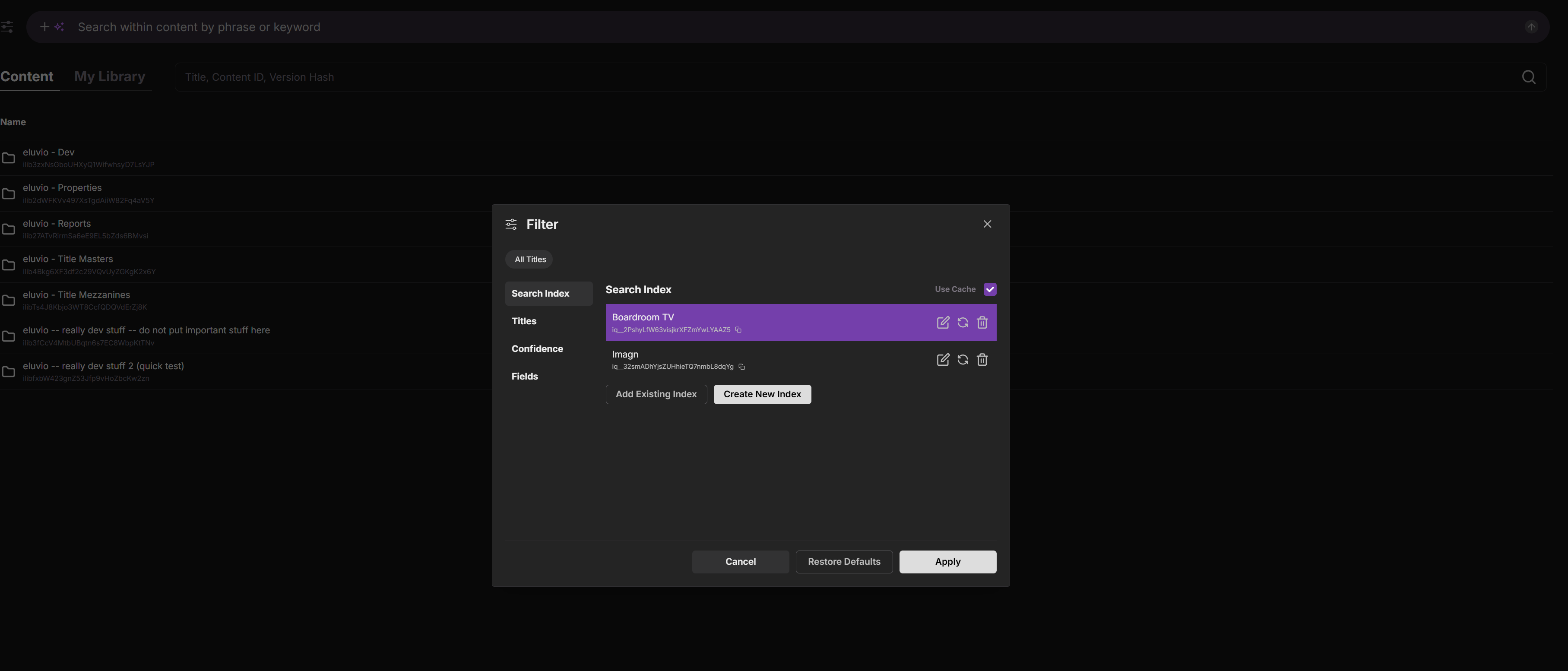
EVIE
Click on index configuration

Select Add Existing Index and enter the content id for the index.